

Best No Code App Builder in 2026: 7 Platforms Compared
Looking for the best no code app builder? Compare 7 platforms by app type, learning curve, code ownership, and starting price, then pick the right one.
You have an app idea, but no time to learn programming and no budget for a development team. That is the gap a no code app builder fills. The catch is that these tools are built for very different jobs. Some turn a written prompt into a web app, some publish native apps to the App Store, and some sit on top of a spreadsheet.
So there is no single best no code app builder for everyone, and this guide sorts seven platforms by what each one does well. We went through every tool's official product and pricing pages in October 2026 and compared editing, starting points, backend setup, publishing, cost, and code portability. The short version:
- Enter Pro: AI-built full-stack web apps you can still edit by hand
- Bubble: complex SaaS and marketplace logic
- FlutterFlow: native iOS and Android apps with Flutter code export
- Adalo: a first mobile app with app store publishing
- Glide: internal tools and business apps built on your own data
- Replit Agent: prompt-to-app with a full coding workspace behind it
- WeWeb: custom web front ends on the backend you choose
Below, we cover what to look for first, then go through each platform's features, trade-offs, and pricing.
What is a no code app builder?
A no code app builder is a platform that lets you create software through visual tools or plain-language prompts instead of hand-written code. You arrange screens, define data, and set up logic in an editor, and the platform takes care of the code, hosting, and deployment underneath.
Two styles now share the label. Visual builders such as Bubble and Adalo give you a drag-and-drop canvas and a workflow editor. AI builders such as Enter Pro and Replit Agent generate the app from a description, then let you refine it through chat or direct edits. Both produce real no code apps: customer portals, internal dashboards, marketplaces, booking tools, and the MVPs founders use to test an idea before hiring engineers.
What makes the best no code app builder?
The best no code app builder should fit your workflow, budget, and release plans. Use these six practical checks to compare tools.
| Criterion | What to check | What a useful result looks like |
|---|---|---|
| Editing and iteration | Change a heading, adjust spacing, and revise one workflow. | Can you target the change through visual controls, prompts, or code without rebuilding the app? |
| Starting points | Start from a relevant template, prompt, or existing dataset. | How much setup is needed before the first useful screen appears? |
| Backend and integrations | Add sign-in, save a record, reload it, and connect one required service. | Identify built-in services versus external setup; check data persistence and access rules. |
| Publishing | Open the app on a phone and confirm its intended distribution channel. | A browser link is not native app-store publishing. Check what your project actually needs. |
| Cost and free limits | Price a small live app, not just an editor account. | Include seats, hosting, backend usage, and store fees; note where the free tier stops. |
| Code portability | Find the export or sync option and its plan requirements. | Can a developer continue outside the platform, or does the app depend on its runtime? |
We use these same six criteria in the comparison and product reviews below. The comparison draws on official product and pricing information; the Gather walkthrough illustrates Enter Pro’s workflow.
For examples of the first two checks, see Enter Pro’s Visual Editor and templates.
The 7 best no code app builders compared
The table follows the same six criteria above. Shortlist two or three platforms, then use the reviews to check the trade-offs.
| Platform | Editing and iteration | Starting points | Backend and integrations | Publishing | Cost and free limits | Code portability |
|---|---|---|---|---|---|---|
| Enter Pro | Prompt, Visual Editor, Code Editor | Prompts, files, community remixes | Enter Cloud; functions and secrets | Web publishing; paid custom domain | Trial credits; Basic $20/month; usage credits | GitHub sync/download from Basic |
| Bubble | Visual workflows; AI-assisted pages | Templates, plugins, AI page building | Built-in database; plugins and APIs | Web and native iOS/Android | Free development; web $29/month annual; workload | Platform runtime; no standalone source export |
| FlutterFlow | Flutter visual UI; custom code | Prebuilt Flutter templates | Firebase/Supabase; APIs | Native iOS/Android, web, desktop | Free 2 projects; Basic $39/seat/month; backend extra | Flutter code download from Basic |
| Adalo | Multi-screen visual canvas; beta AI | Prebuilt components; AI-assisted setup | Built-in relational database; plan-based integrations | Web and native iOS/Android | Free 500 records; $36/month annual; store fees | Platform runtime; no source export |
| Glide | Data-first layouts and components | Spreadsheets and existing business data | Data sources; workflows and integrations | Web apps for phone and desktop | Limited free credits; Basic $25/month | Platform runtime; no source export |
| Replit Agent | Prompt-driven code; full workspace | App prompts and Plan mode | App code and service connections | Hosted web apps from the workspace | Core $20/month; agent usage and hosting | Direct project-file access |
| WeWeb | Visual frontend; workflows and AI | Reusable UI; visual and AI-assisted setup | External backends or WeWeb Cloud | Web hosting or self-hosting | Free tier; Essential $20/seat/month; hosting extra | Export/self-host and GitHub from Essential |
Prices come from each vendor's official pricing page, checked on October 12, 2026. Plans change often, so confirm before you buy.
1. Enter Pro: best no code AI app builder for full-stack web apps
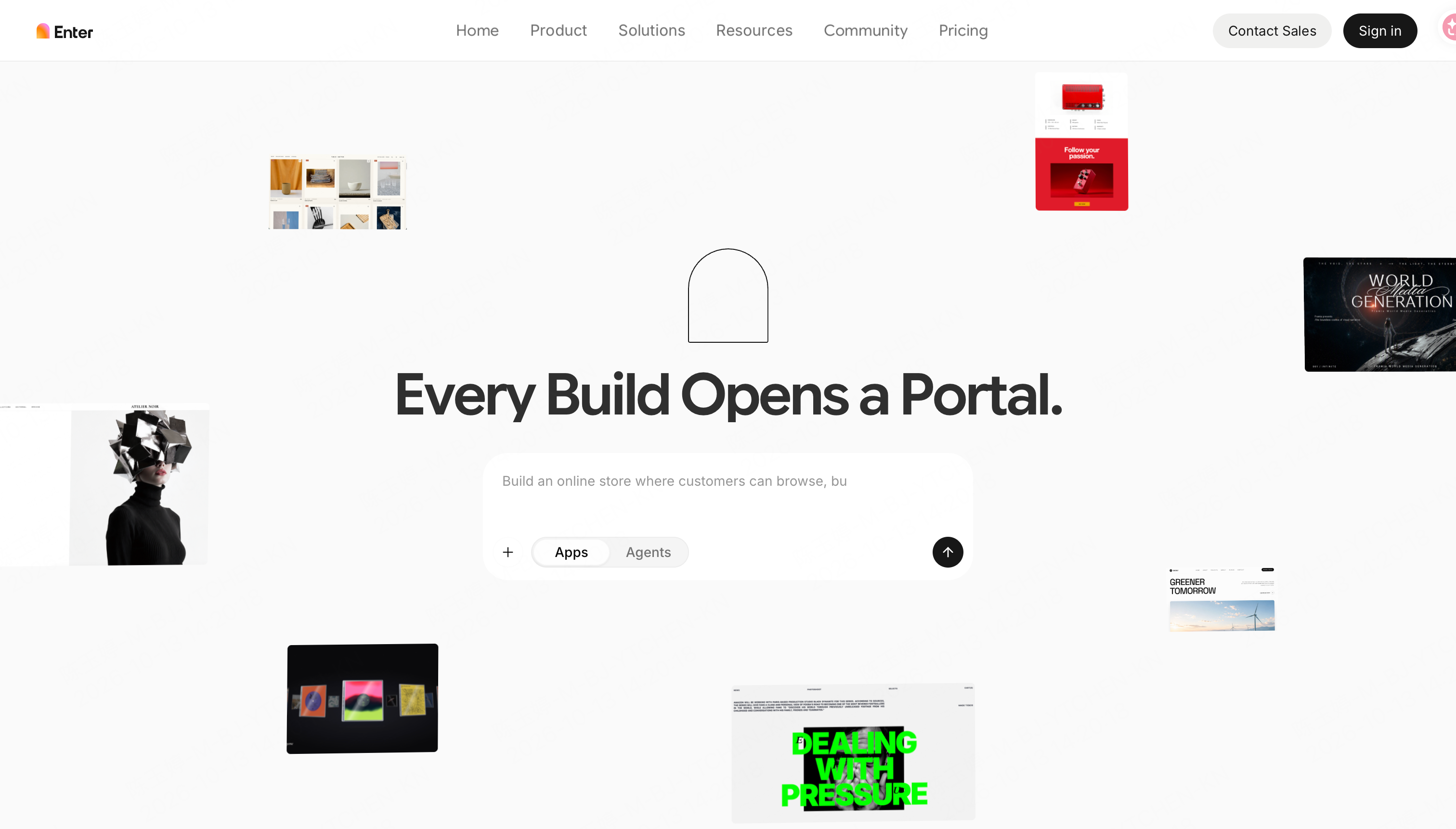
Enter Pro builds a web app from a plain-language description. You describe the product, and it generates a React, Vite, TypeScript, and Tailwind project with a live preview. What separates it from most prompt-based tools is what happens after the first draft, because you are not stuck re-prompting. You can click any element in the Visual Editor to change it, open the Code Editor to work on the source, or keep talking to the AI.
Enter Cloud adds the backend, so data, logins, and server logic live in the same project. If you are looking for the best no code AI app builder for a product you plan to keep developing, that mix is the reason to start here. The AI app builder page shows the full workflow.
Assessment against the six criteria
- Editing and iteration: Change text and styles in the preview, iterate in chat, or open the source for a precise edit.
- Starting points: Start with a brief, attach a reference, or remix a community template.
- Backend and integrations: Database, authentication, storage, functions, and secrets share the workspace. Connect outside services as the app requires.
- Publishing: Publish a hosted web app; add a custom domain on a paid plan. Native app-store output is not the focus.
- Cost and free limits: The free plan has one-time trial credits. Basic is $20/month; budget for the credits your builds and cloud usage consume.
- Code portability: GitHub sync and code download start on Basic, giving developers a standard React project to continue with.
Pros
- Three ways to edit, so a small fix does not need another prompt.
- A standard React codebase rather than a proprietary format.
- GitHub sync and code download are included from the Basic plan.
Cons
- Builds web apps, not native iOS or Android apps.
- AI generation uses credits, so heavy iteration needs a paid plan.
- Generated logic still needs testing before real users depend on it.
Pricing: Free plan with one-time trial credits. Basic is $20/month, Pro is $40/month, and Ultimate is $190/month. Custom domains, GitHub sync, and code download start on Basic. Credit allowances for each plan are on the Enter Pro pricing page.
2. Bubble: best for complex SaaS and marketplace logic
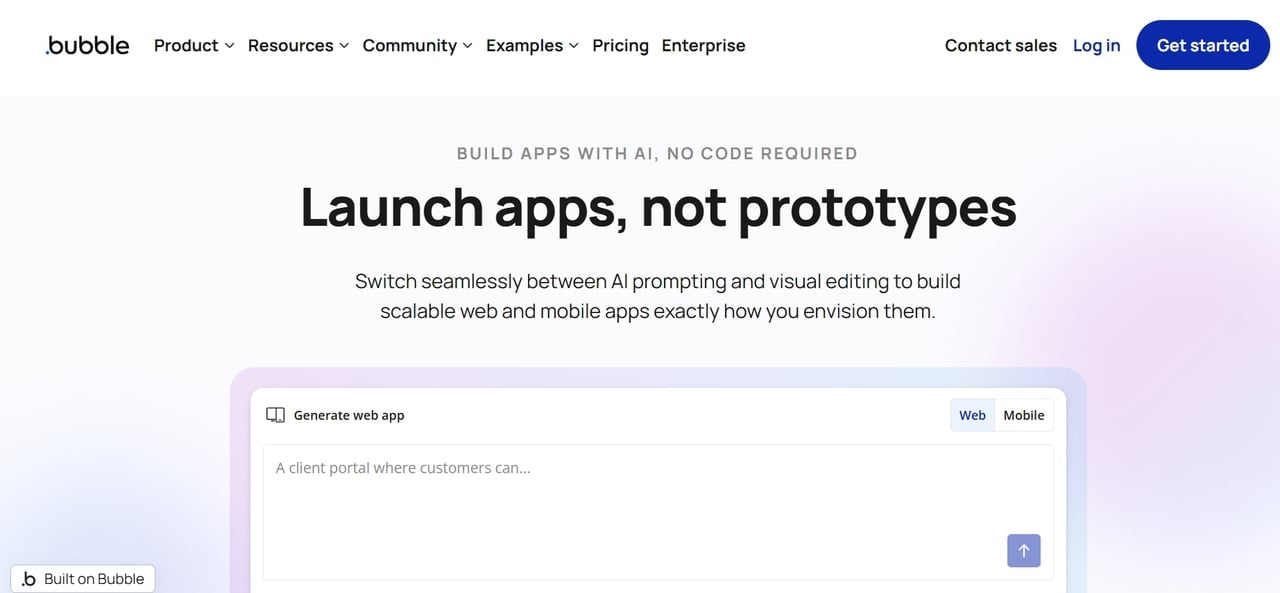
Bubble is one of the longest-running visual builders, and it is still the one people reach for when an app has complicated rules. Its workflow editor lets you define what happens on every click, condition, and schedule, and the built-in database handles users, roles, and relationships. Bubble now builds native iOS and Android apps alongside web apps, with both sharing one backend, and it has added an AI agent to speed up page building.
Assessment against the six criteria
- Editing and iteration: Edit screens visually and set up multi-step workflows, conditions, and scheduled jobs. The workflow model takes practice.
- Starting points: Use the template and plugin ecosystem or AI-assisted page building, then adapt the data model and workflows.
- Backend and integrations: Model users and data relationships inside Bubble and connect payments or other services through plugins and the API connector.
- Publishing: Web and native mobile apps can share a backend; choose the matching publishing plan.
- Cost and free limits: Free is for development. Web Starter is $29/month billed annually; workload units, plugins, and mobile plans can add cost.
- Code portability: The application runs on Bubble; you cannot export it as standalone source code.
Pros
- Handles deep business logic that simpler builders cannot.
- Large community, template library, and learning material.
- One backend for web and mobile.
Cons
- Takes longer to learn than most tools on this list.
- Usage is metered in workload units, which makes costs harder to predict as traffic grows.
- You cannot export the app as standalone source code.
Pricing: Free plan for building and testing. Starter is $29/month billed annually for a live web app; mobile and web-plus-mobile plans are priced separately.
3. FlutterFlow: best no code mobile app builder for native iOS and Android
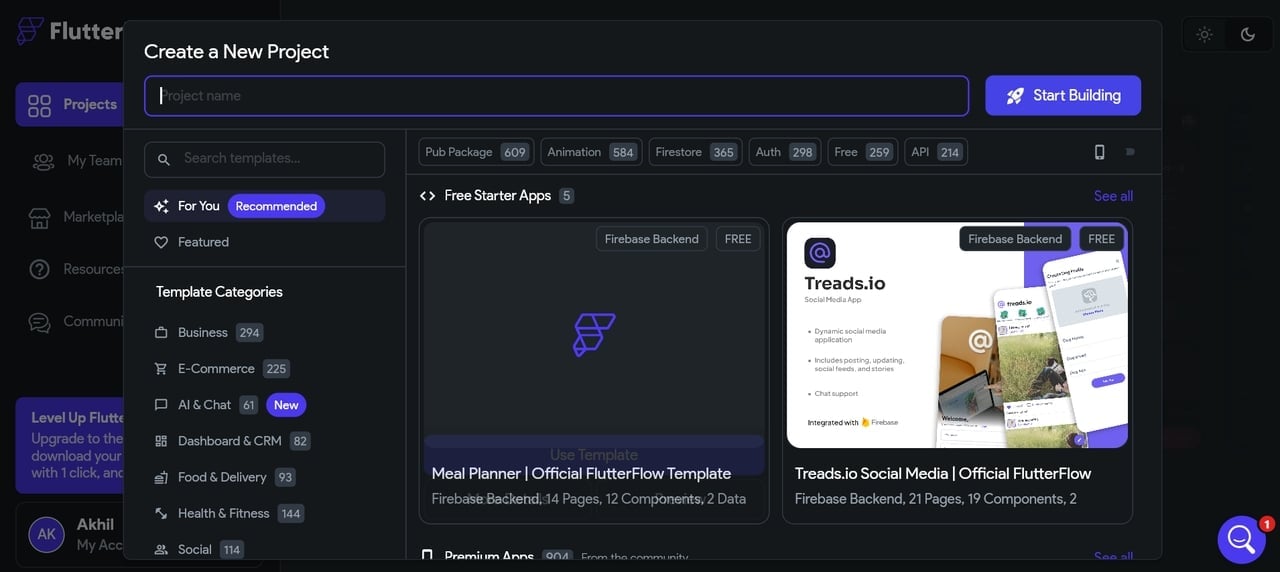
FlutterFlow is a visual builder that sits on top of Google's Flutter framework. You design screens on a canvas, connect data from Firebase, Supabase, or an API, and FlutterFlow produces Flutter code that compiles into native apps. For teams that care about how an app feels on a phone, it is a strong candidate for the best no code mobile app builder, and the same project can also target web and desktop.
Assessment against the six criteria
- Editing and iteration: Design screens visually and refine behavior with state, actions, and custom code. App structure and data modeling still matter.
- Starting points: Choose a starter template or prebuilt components, then customize screens and data connections.
- Backend and integrations: Connect authentication and data through Firebase, Supabase, or APIs. Backend setup and fees sit outside the editor subscription.
- Publishing: Target native iOS and Android plus web and desktop. Store deployment starts on a paid plan.
- Cost and free limits: Free covers two projects. Basic is $39/month per editor; allow for backend costs and store accounts when publishing.
- Code portability: Download the Flutter project on Basic and continue development outside FlutterFlow.
Pros
- Produces real native apps, not web wrappers.
- The Flutter code is yours to take elsewhere.
- Supports push notifications, payments, and other native features.
Cons
- Assumes you understand app structure, state, and data modeling.
- You bring your own backend, which adds setup and cost.
- The free plan does not include code download or store deployment.
Pricing: Free plan with up to two projects. Basic is $39/month, and Growth starts at $80/month for the first seat.
4. Adalo: best for a first mobile app
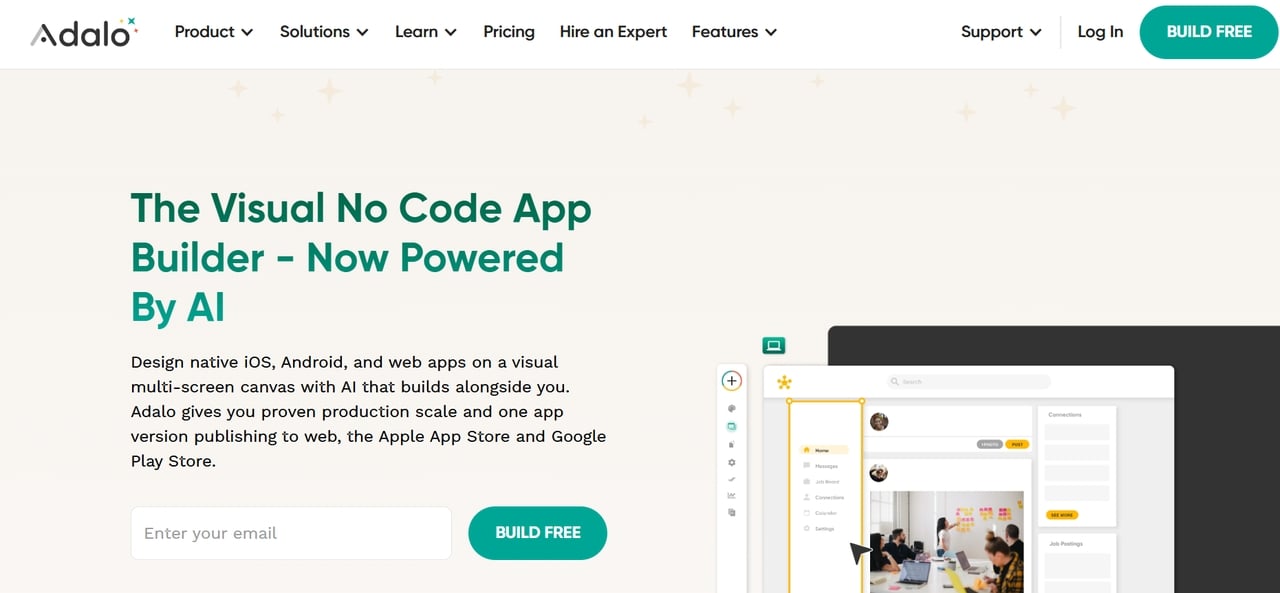
Adalo keeps mobile app building approachable. You lay out screens on a multi-screen canvas, store data in its built-in database, and publish the same app to the web, the App Store, and Google Play. An AI assistant, currently in beta, can build and edit from prompts. Pricing is flat with no usage-based charges, which makes budgeting easy for a small project.
Assessment against the six criteria
- Editing and iteration: Arrange screens on one canvas and use the beta AI assistant for prompt-based building and edits.
- Starting points: Use prebuilt components to assemble screens, with AI assistance for the first draft. Check that the components fit your workflow.
- Backend and integrations: Store related data in the built-in database; connect Stripe, Zapier, or external APIs where the plan supports them.
- Publishing: Publish one project to the web, App Store, and Google Play on a paid plan.
- Cost and free limits: Free supports test apps with 500 records each. Starter is $36/month billed annually; add Apple and Google developer-account fees.
- Code portability: The app stays within Adalo’s platform rather than exporting as a standalone codebase.
Pros
- Gentle learning curve for first-time builders.
- Flat monthly pricing.
- One build covers web, iOS, and Android.
Cons
- The free plan is capped at 500 records per app and cannot publish.
- Less suited to heavy custom logic.
- No source code export.
Pricing: Free plan for building and testing. Starter is $36/month billed annually. Publishing to the stores also needs an Apple developer account ($99/year) and a Google Play account ($25 one-time).
5. Glide: best for business apps built on your data
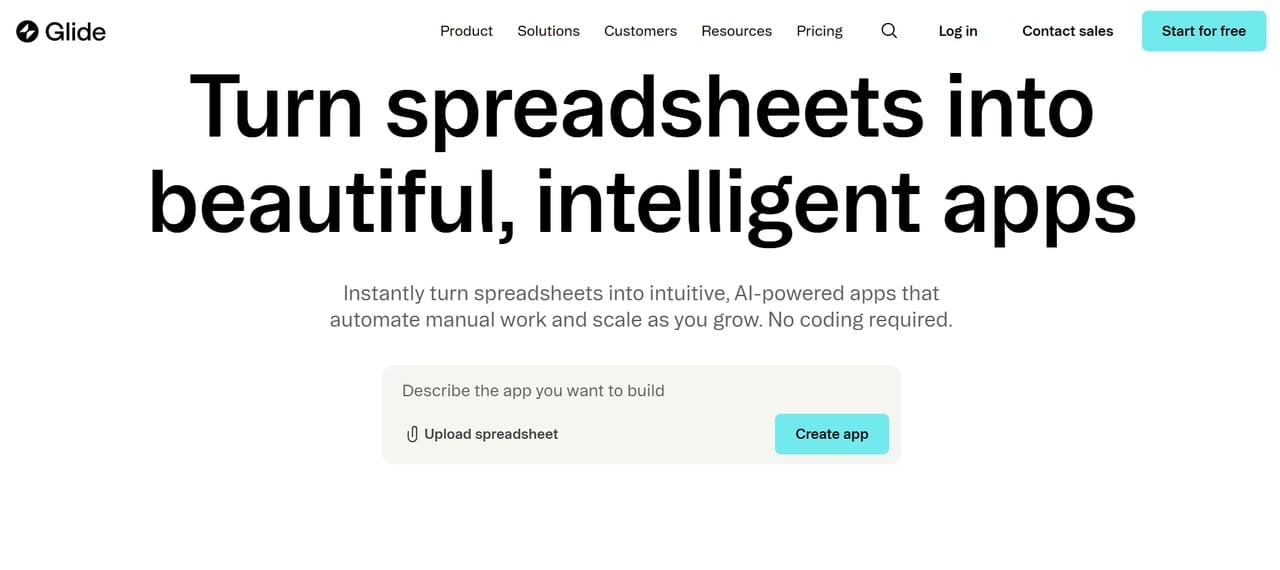
Glide starts from your data rather than a blank canvas. Upload a spreadsheet or connect a data source, and it produces a working app with lists, forms, and detail views that you then adjust. That makes it popular for internal tools such as inventory trackers, field checklists, client portals, and simple CRMs. Recent plans add AI agents and workflows on top.
Assessment against the six criteria
- Editing and iteration: Adjust lists, forms, and detail views around your data. Layout freedom is more limited than in a full visual builder.
- Starting points: Start with a spreadsheet or business dataset instead of building every screen and database field from scratch.
- Backend and integrations: Use connected business data, workflows, and integrations. Confirm the source and access controls match your team’s needs.
- Publishing: Share browser-based apps for desktop and phone use; these are not native app-store builds.
- Cost and free limits: Free credits are limited. Basic starts at $25/month; review credits, publishing limits, and team needs before upgrading.
- Code portability: The app is maintained in Glide, not handed off as an exported source-code project.
Pros
- Quick route to a usable internal tool.
- Non-technical teams can maintain it themselves.
- Works in phone and desktop browsers.
Cons
- Less design freedom than a full visual builder.
- Apps are web-based, not native App Store apps.
- Not designed for complex consumer SaaS products.
Pricing: Free plan with limited credits. Basic is $25/month, Plus is $50/month, and Pro is $125/month.
6. Replit Agent: best for prompt-to-app with a coding workspace
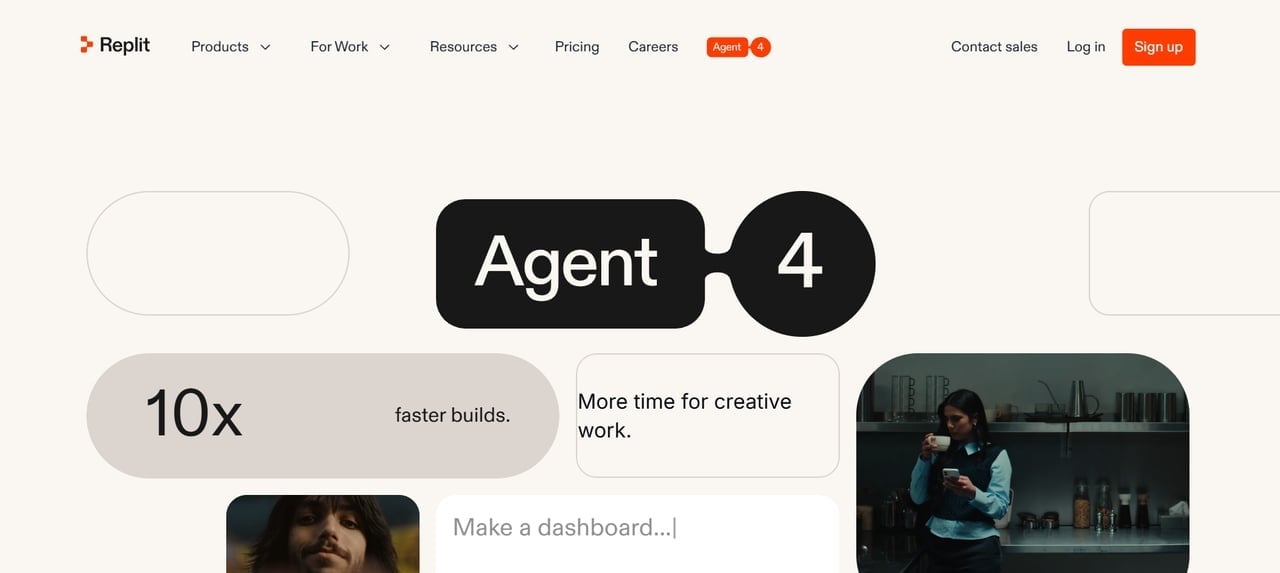
Replit Agent lives inside Replit's browser-based development environment. You describe the app, and the Agent plans it, writes the code, and deploys it. Because everything happens in a full workspace, you or a developer you bring in later can open any file and change it. That is also the trade-off. Replit is closer to AI-assisted coding than to classic no-code, and it helps to know some development basics when something breaks.
Assessment against the six criteria
- Editing and iteration: Use the Agent to generate or revise the app, then edit files directly. Development knowledge helps when debugging.
- Starting points: Start from a brief and review the plan before coding, rather than learning a visual canvas first.
- Backend and integrations: Backend behavior is generated as app code. Review data storage, authentication, and integrations in the workspace instead of assuming they are configured.
- Publishing: Deploy the web app from the same development environment; use this comparison for the web workflow.
- Cost and free limits: Core is $20/month, or $18/month billed annually. Budget for effort-based Agent usage and the deployment resources the app needs.
- Code portability: Open and change the project files directly, which gives a developer a codebase to continue working on.
Pros
- Full access to the code and project files.
- Flexible enough for many kinds of apps.
- Building and hosting in one place.
Cons
- Basic development knowledge helps a lot.
- Agent usage is billed by effort, so costs vary with task size.
- Less visual editing than canvas-based builders.
Pricing: Core is $20/month, or $18/month billed annually. Pro is $100/month.
7. WeWeb: best for custom web front ends with backend freedom
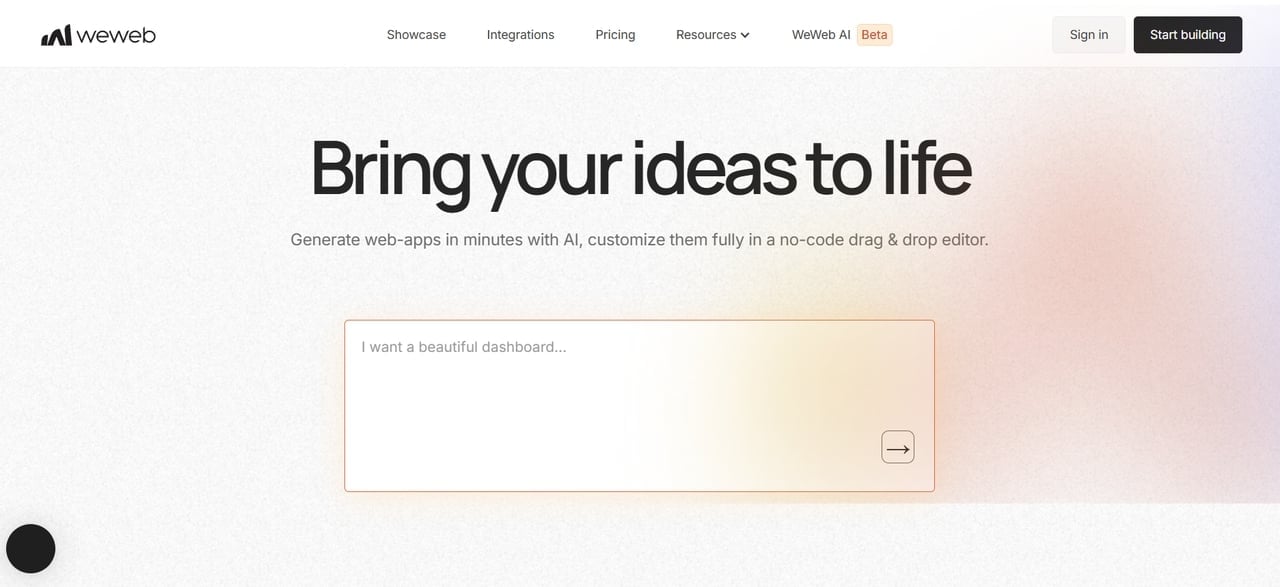
WeWeb is a visual front-end builder for web apps. You design responsive interfaces, add workflows and logic, and connect them to whatever holds your data, whether that is Xano, Supabase, a REST API, or WeWeb's own cloud backend. Paid seats can export the code and self-host, which is unusual among visual builders.
Assessment against the six criteria
- Editing and iteration: Edit responsive interfaces visually and define workflows, with AI assistance. APIs and data structures still need attention.
- Starting points: Assemble the interface from visual components, then adapt the layout and workflows for your data.
- Backend and integrations: Connect Xano, Supabase, or REST APIs, or use WeWeb Cloud. Choose the backend before budgeting hosting.
- Publishing: Publish web apps on WeWeb Cloud or export and self-host. Native mobile output is not the focus.
- Cost and free limits: Essential is $20/month per seat. Hosting is billed separately, with a free tier; external backends may add costs.
- Code portability: Export the application, sync with GitHub, or self-host from Essential instead of depending solely on WeWeb hosting.
Pros
- You choose the backend and can change it later.
- Export and self-hosting reduce lock-in.
- Fine control over the interface.
Cons
- You need to understand APIs and data structures.
- Seats and hosting are billed separately.
- Web apps only, with no native mobile output.
Pricing: Free plan available. Essential is $20/month per seat and Pro is $50/month per developer. WeWeb Cloud hosting is billed separately and has a free tier.
Which is the best free no code app builder?
Every platform here has a free tier, but each one limits something different, so match the limit to your goal.
Free plans are meant for learning and prototyping. The useful question is how far you can get before paying:
- To test an idea end to end: Enter Pro's free plan includes a one-time batch of trial credits, enough to generate and adjust a small web app. WeWeb's free plan lets you build and deploy to its cloud with a cap on sessions.
- To learn a visual builder: Bubble's free plan gives you the editor and a development version of your app, and Adalo lets you build unlimited test apps with up to 500 records each. Neither publishes a live app for free.
- To try native mobile: FlutterFlow's free plan covers two projects and web publishing. Code download and store deployment start on Basic.
- To build an internal tool: Glide's free plan supports small team projects with limited credits.
So the best free no code app builder depends on whether you want to learn, prototype, or launch. If launching is the goal, budget for a paid plan on any of them.
How to choose the best app builder without coding
Four questions will narrow seven options down to one or two, and they take about ten minutes to answer.
Picking the best no-code app builder gets easier once you stop comparing feature lists and start from your own project.
- Web app or native app? If users must install it from an app store, look at FlutterFlow, Adalo, or Bubble. If a browser is fine, which it is for most SaaS products, portals, and internal tools, a web builder is the shorter path.
- How much time can you spend learning? Bubble and FlutterFlow reward weeks of practice. AI builders get you to a first version the same day, though you still have to review what they generate.
- What will it cost once people use it? Compare pricing models: flat (Adalo), per seat (FlutterFlow, WeWeb), or usage and credits (Bubble, Glide, Replit, Enter Pro).
- Will you need the code later? If developers may take over the project one day, favor tools with code export or sync.
If your answers are “web app, not much time to learn, and I want access to the code,” Enter Pro is the natural one to try first. The next section shows what building with it looks like.
How to build no code apps with Enter Pro in 4 steps
We built Gather, an event-planning workspace, to show how a detailed brief turns into screens, edits, and backend setup.
Step 1: Prompt — describe the app and review the plan
Our brief asked for a weekend makers market workspace with an overview, schedule, task board, budget, and venue shortlist. We specified a warm off-white background, forest-green accents, and fictional sample content so the first version would have something useful to show.
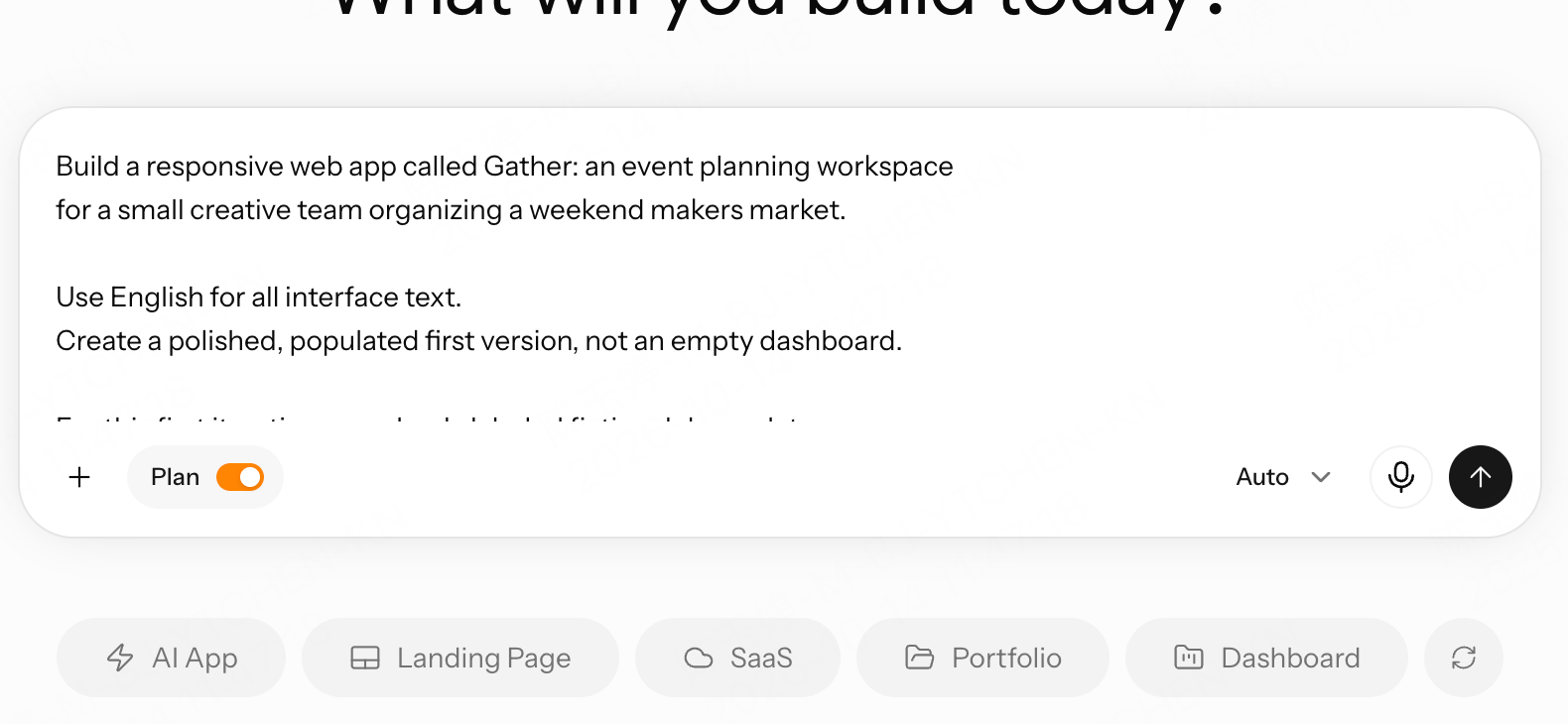
With Plan Mode on, Enter asked how to source the cover and venue images. We chose AI-generated images. The plan separated the first, browser-local demo from a later Enter Cloud version, making it clear what would be built first.
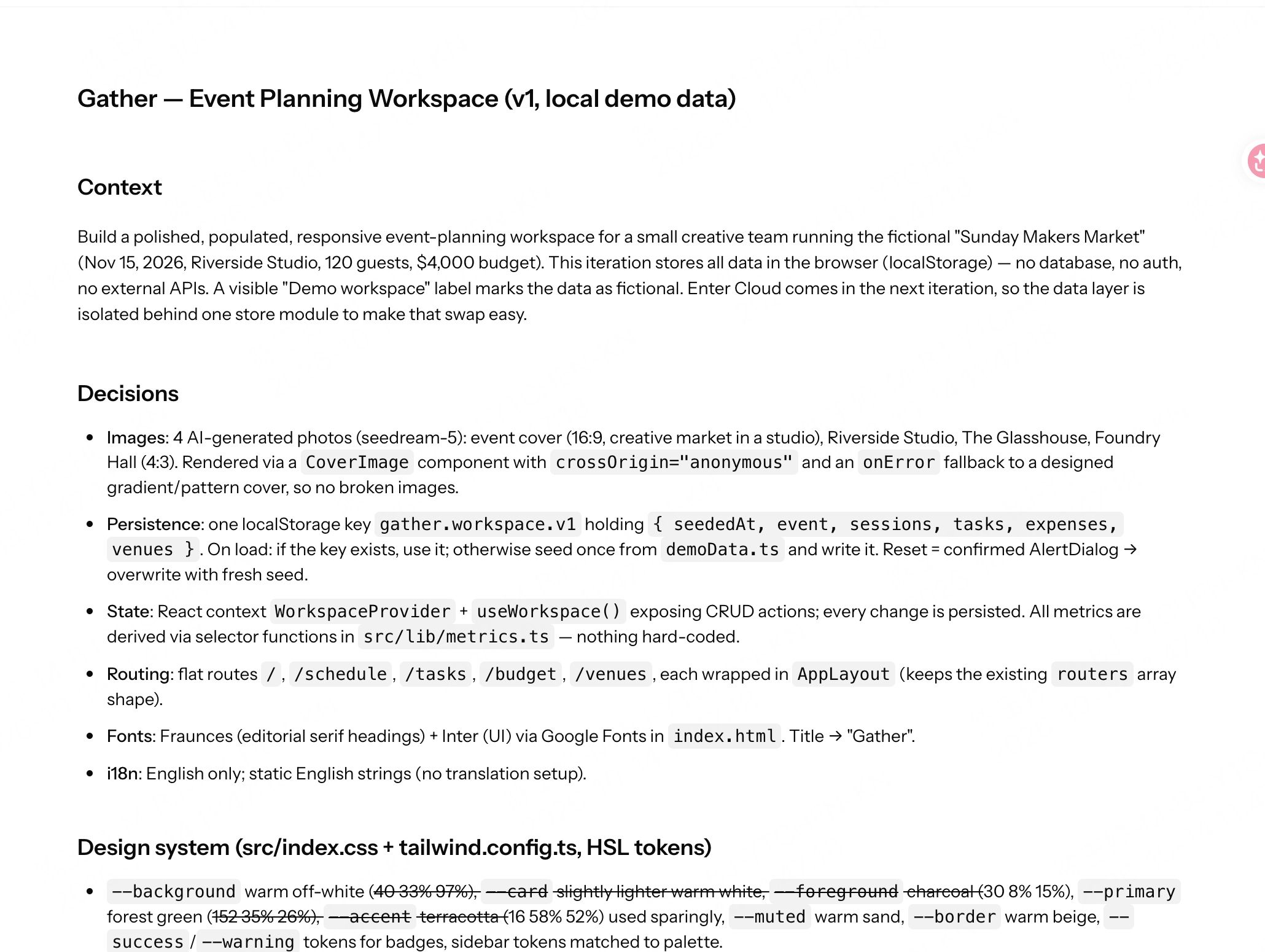
The resulting preview had an event cover, sidebar navigation, and summary cards for 120 expected guests, three of eight tasks complete, $3,650 in planned spend, and five sessions. These are fictional example figures, not real event results. The first version explicitly labeled its data as stored only in the browser.
Step 2: Visual Editor — work on a specific element
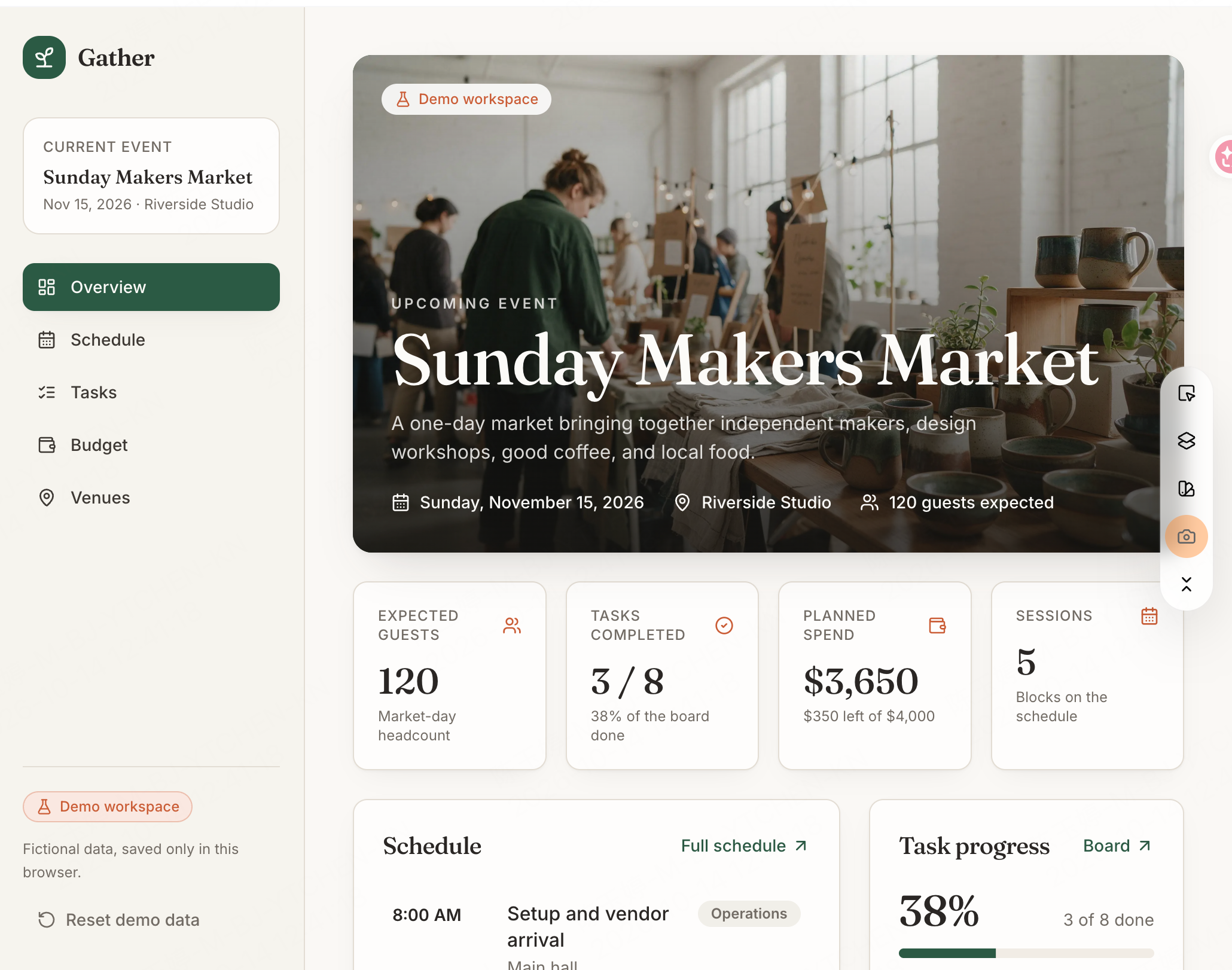
Next, we selected the “Expected Guests” label in the preview. The Visual Editor opened a panel with the label’s content, font, size, weight, alignment, and color. This gives you a way to target one part of the page rather than describe its position in a long prompt. For a small text or styling change, having the controls beside the selected element makes the next edit much more concrete.
You can also inspect the generated source in the Code Editor. Our AI code generator guide explains that part of the workflow.
Step 3: Enter Cloud — bring users and data into the workspace
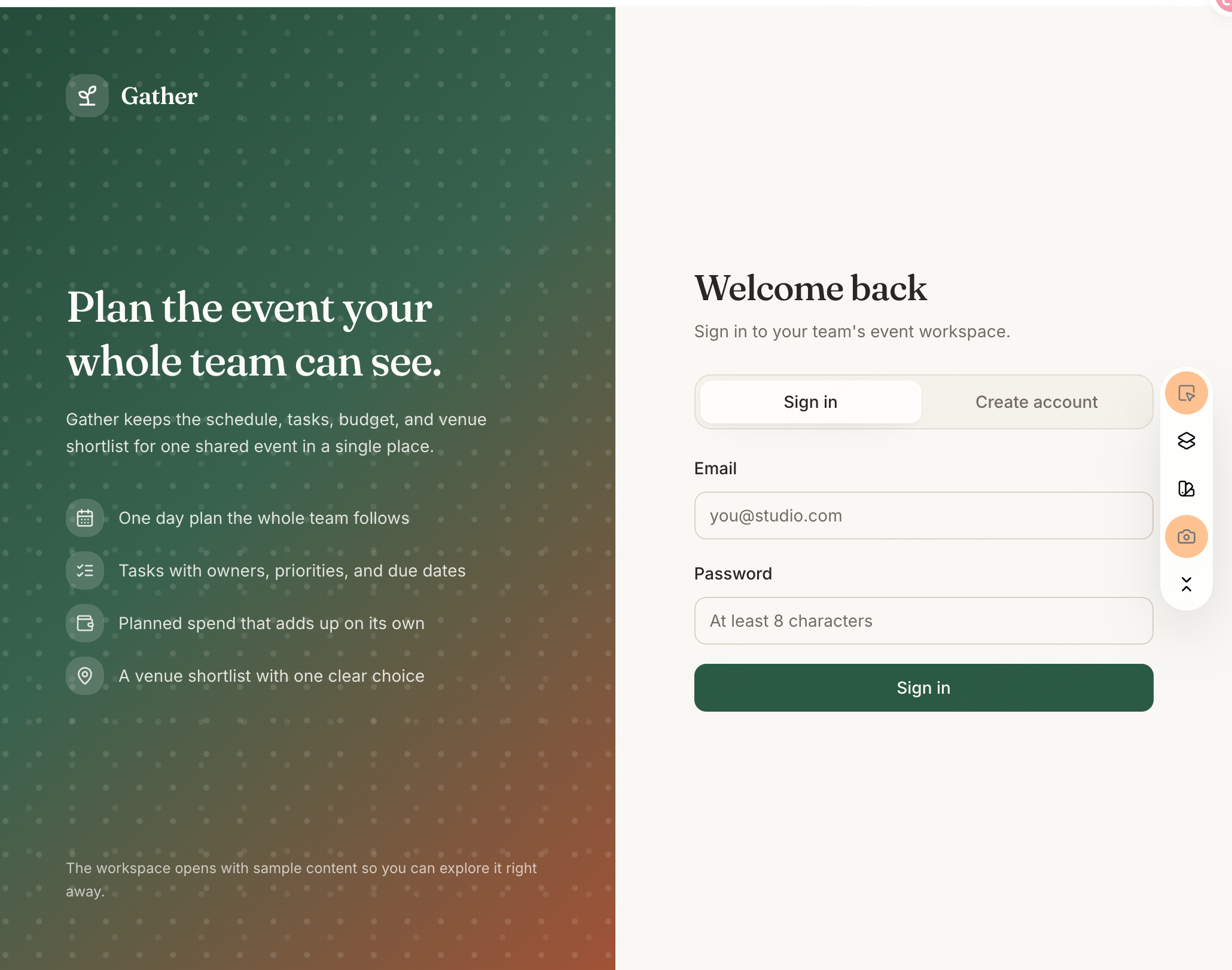
With the layout in place, we used Enter Cloud to add the backend. Gather’s Authentication panel now lists two email accounts, and its Database panel contains five PostgreSQL tables: events, expenses, sessions, tasks, and venues. The structure matches the app’s five main areas, so the backend is organized around the same event-planning workflow as the interface.
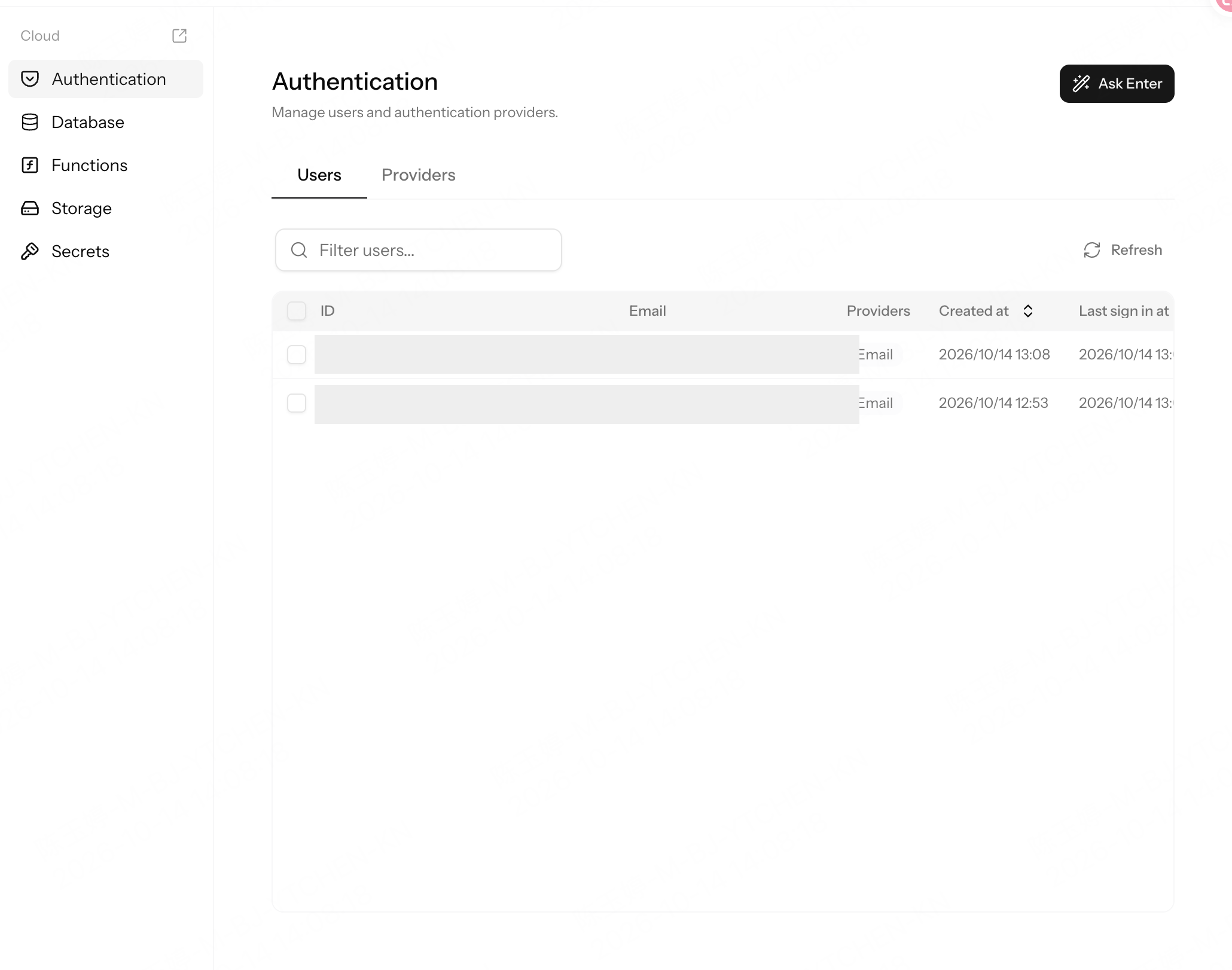
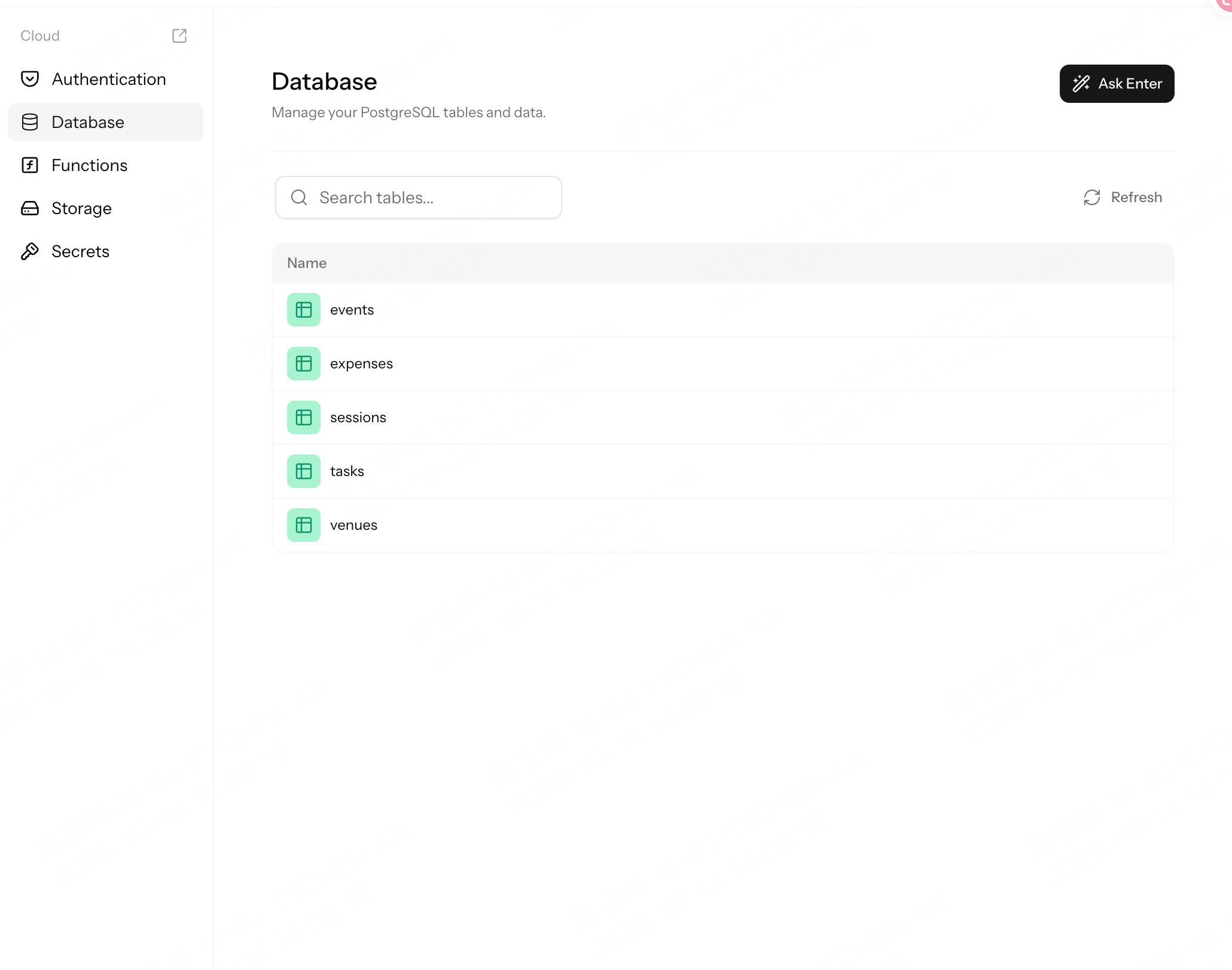
The useful part is having the backend tools beside the app rather than in a separate dashboard. Authentication manages accounts and sign-in providers; Database organizes application data; Functions handles server-side logic; Storage holds files; and Secrets keeps sensitive configuration out of the front end. You can ask Enter for backend changes from the same workspace.
Step 4: Publish — share the result
Once the app is ready to share, use Publish to create its hosted web version. Open the resulting URL in a separate tab and check the main flows there: signing in, updating a task, and reviewing the budget. Before inviting others, also review registration and workspace access settings. A custom domain is available on a paid plan.
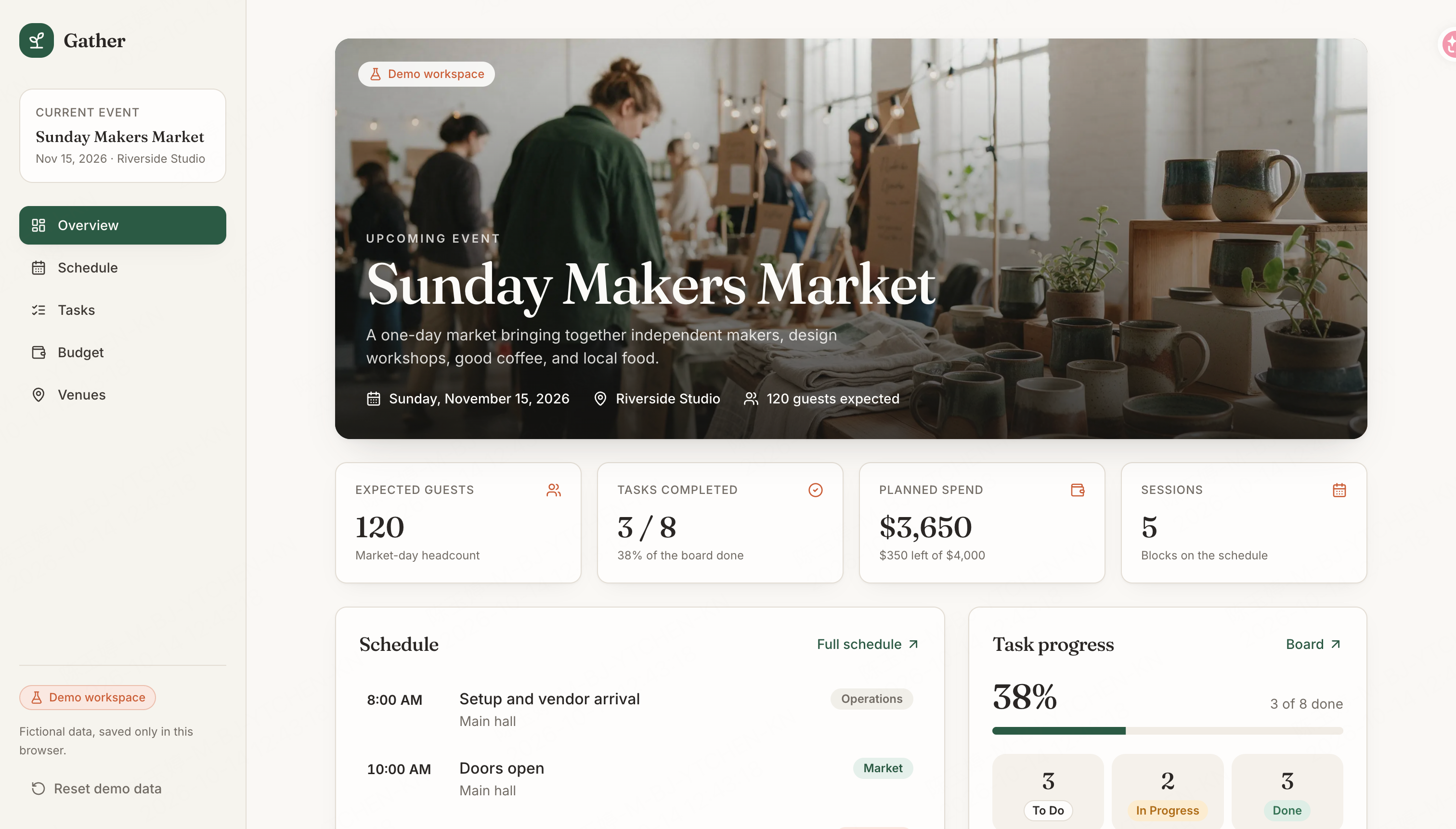
The finished interface gives the case a clear visual result. A wide market cover introduces the event, while four summary cards make the guest count, completed tasks, planned spend, and sessions easy to scan. The warm background, green navigation, and consistent typography carry through the workspace. Instead of a blank dashboard, we ended up with a cohesive event-planning demo that shows what a specific brief can produce.
Final thoughts on choosing a no code app builder
No-code tools have made it realistic to ship a working product without an engineering team, but they are not interchangeable. Go with FlutterFlow or Adalo for native mobile, Bubble for heavy logic, Glide for internal tools, WeWeb when you already have a backend, and Replit Agent if you are comfortable being close to code. The best app builder is the one you will actually finish a project in, so try your shortlist on a small real task before you commit.
For web apps, Enter Pro deserves a place on that shortlist. You get a React codebase instead of a black box, a Visual Editor and a Code Editor for the changes prompts handle badly, and Enter Cloud for the backend, all in one browser tab.
Try Enter Pro and build your first app →
FAQs about no code app builders
What is the best no code app builder?
It depends on the app. For AI-built web apps that you can keep editing, Enter Pro is a strong pick. Bubble suits complex SaaS logic, FlutterFlow and Adalo suit native mobile apps, and Glide suits internal tools. Start from the app type, then compare learning curve and pricing.
What is the difference between no-code and low-code?
No-code tools let you build entirely through visual editors or prompts. Low-code tools are also mostly visual but expect you to write some code for custom features. The line is blurring, though. Several no-code platforms, including Enter Pro, WeWeb, and FlutterFlow, let you open or export the code when you want to.
Can I build a native mobile app without coding?
Yes. FlutterFlow, Adalo, and Bubble can publish to the App Store and Google Play. Enter Pro, Glide, and WeWeb focus on web apps, which run well in a mobile browser but are not distributed through app stores. Store publishing also requires Apple and Google developer accounts.
Do I own the code for an app I build?
It varies. Bubble, Adalo, and Glide run your app on their own platforms and do not export source code. FlutterFlow and WeWeb offer code export on paid plans, Replit gives you the files directly, and Enter Pro includes GitHub sync and code download from its Basic plan. Check this before you build anything you may need to move.
How much does a no code app builder cost?
Most platforms are free to start. Entry-level paid plans for the tools in this guide ran from about $20 to $40 a month when we checked in October 2026, and team plans cost more. Watch for extras such as usage charges, additional seats, hosting, and app store fees.
How long does it take to build an app with no code?
An AI builder can produce a first version in one sitting. A polished, tested app usually takes days to weeks, depending on how much logic and data it has. The building is quick. Deciding what the app should do and testing it is where the time goes.